
Case Studies
Explore our confidential case studies where Xpert Forensics uncovered digital fraud, insider threats, data leaks, and cyber misconduct using advanced forensic tools and investigative techniques. Each case reflects our commitment to precision, discretion, and delivering actionable insights that drive resolution.
SOP for Handling BitLocker Encrypted Windows Devices During Digital Investigations
Introduction
Windows computers and laptops may contain important digital evidence such as documents, emails, browser history, photographs, application data, user activity, and deleted files. When a Windows device is protected by BitLocker or another encryption mechanism, improper handling during a search or seizure can make the evidence significantly more difficult to access.
The purpose of this SOP is to provide investigators and forensic personnel with a practical procedure for handling Windows devices, particularly when BitLocker encryption, device encryption, or other disk-encryption mechanisms are present.
The primary objectives are:
- Preserve the original state of the device as far as reasonably possible.
- Prevent accidental loss of encryption keys or volatile evidence.
- Identify the encryption status of the device.
- Securely obtain and document available recovery keys.
- Perform forensic acquisition using an appropriate forensic tool.
- Verify the forensic image after acquisition.
- Maintain proper documentation and chain of custody.
Important Principle: Do Not Immediately Shut Down or Restart the Device
The first decision should be based on the current power state of the Windows device.
If the device is powered OFF
Do not switch it ON simply to check the contents unless the approved search procedure specifically requires it.
An encrypted device may require:
- Windows user password
- BitLocker PIN
- BitLocker Recovery Key
- Other authentication mechanisms
Starting the device can change system data and may also create additional forensic considerations.
If the device is powered ON
Do not immediately shut it down. A powered-on and unlocked Windows system may provide an opportunity to collect information that may not be available after shutdown, particularly information associated with encryption keys and volatile memory.
The investigator should first document the device’s condition and follow the organization’s approved live-response procedure.
Identify the BitLocker Status
If the Windows system is accessible and the approved procedure permits interaction with it, check whether BitLocker is enabled.
Open BitLocker Settings
- Turn ON the Windows system.
- Click the Windows Search option.
- Type BitLocker and Press Enter to open the BitLocker settings.
Check BitLocker Status
- If BitLocker is OFF/Disabled, leave the settings unchanged.
- If BitLocker is ON/Enabled, proceed with the next steps in the SOP.
Turn Off BitLocker
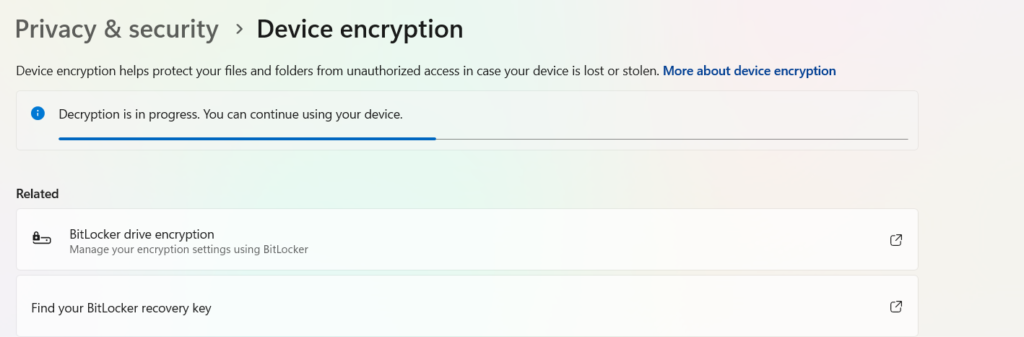
- If BitLocker is ON/Enabled, click “Turn off BitLocker” to disable BitLocker encryption.
- Follow the on-screen instructions and wait for the decryption process to complete.
Monitor the Decryption Progress
- After selecting “Turn off BitLocker”, monitor the Decryption Progress bar.
- Do not proceed until the decryption process is fully completed.
- The time required depends on the storage capacity and system performance.
- A larger storage capacity may take significantly more time to decrypt, while a smaller storage capacity generally takes less time.
- The Investigator must verify that the decryption has completed successfully before proceeding with the next step.
Record the BitLocker Recovery Key
If the Investigator is unable to complete the previous steps, first obtain and record the BitLocker Recovery Key before proceeding.
Steps to Obtain the Recovery Key
- Type Command Prompt and Run as administrator.
- Proceed with the command to retrieve the BitLocker Recovery Key.
- Record the Recovery Key securely for further forensic processing.
Checkout this Full article Here for Bitlocker Recovery Key: Read More
Verify the Decryption Status
The command displays the current BitLocker encryption/decryption status of the drive.
- If the status shows “Decryption in Progress”, the Investigator should wait until the decryption reaches 100%.
- Do not proceed with the next forensic step while decryption is still in progress.
- Once the decryption is 100% complete, verify that BitLocker is fully disabled before continuing.
How to Verify a Forensic Image After Imaging
Verify Using FTK Imager
- Open FTK Imager, Select File → Add Evidence Item.
- Select the appropriate evidence source option and click Next.
- Select the forensic image file created during the imaging process.
- Browse to the location of the forensic image and load it into FTK Imager.
- Verify that the image loads correctly and that the expected partitions, folders, and files are visible.
Important: The forensic image should be verified after imaging to ensure that the acquired evidence has not been corrupted or altered.
Checking Partitions and Root User
Now, we will check all the available partitions, including their respective drive sizes, and identify the Root User (Administrator account).
Click on the Plus (+) icon to expand the entries, and go through each partition and user listed.
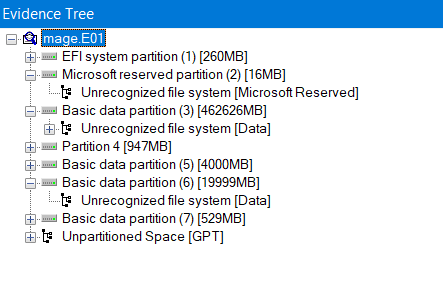
We will check Partition 3 and Partition 6 (due to the Maximum Data size). Both partitions show “Unrecognized File System,” which may indicate that the partitions are BitLocker encrypted or inaccessible to the forensic tool.
Verification Screenshot
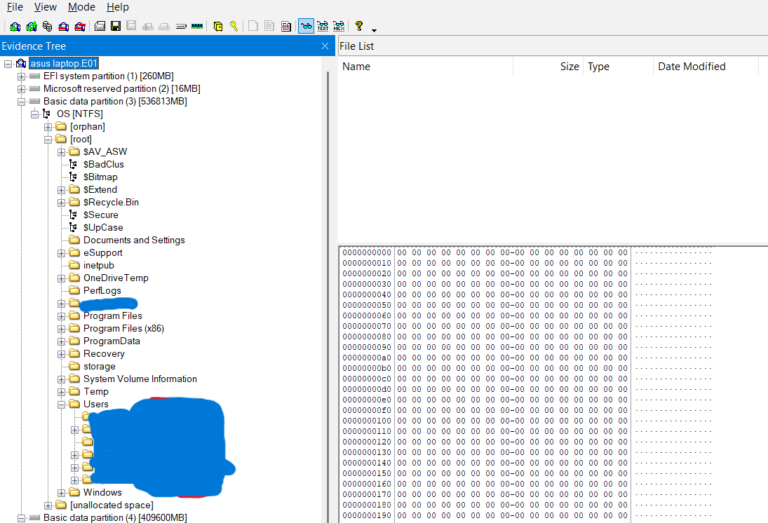
The verification screenshot should look like the example shown below, clearly displaying the partition files status.
Verify that all available user accounts are visible in this section. Check the list carefully to ensure that no user account is missing.
The verification screenshot should show all the available user accounts listed here.
Verifying Decryption
Now, verify through Command Prompt that the drive has been 100% decrypted.
Use the following command: manage-bde -status
Check the Conversion Status and Percentage Encrypted fields. The drive should show Fully Decrypted with 0% Encrypted.