
Case Studies
Explore our confidential case studies where Xpert Forensics uncovered digital fraud, insider threats, data leaks, and cyber misconduct using advanced forensic tools and investigative techniques. Each case reflects our commitment to precision, discretion, and delivering actionable insights that drive resolution.
Extracting Gmail Data for Legal & Forensic Use
Introduction
When Gmail is the target of a forensic collection, Google Takeout is often the most straightforward, defensible, and repeatable method for acquiring a full mailbox. Takeout is a Google-provided export facility that produces an MBOX archive (mailboxes) and gives several delivery and packaging options. Because the export is generated by Google, Takeout outputs are generally considered reliable evidence when collection, documentation, and preservation procedures are followed correctly.
This article explains, in depth, how to perform a forensic Gmail extraction using Google Takeout with a focus on options, practical steps, verification, and defensibility.
Why use Google Takeout in forensics
- Provider-originated export: produced by Google; contains full MIME content and attachments in MBOX format.
- Defensibility: Google-created export can be traced to a specific export action and delivery method.
- Completeness: exports entire mailbox contents (subject to user selection) in a single archive.
- Convenience: selectable delivery, archive sizing, and compression options.
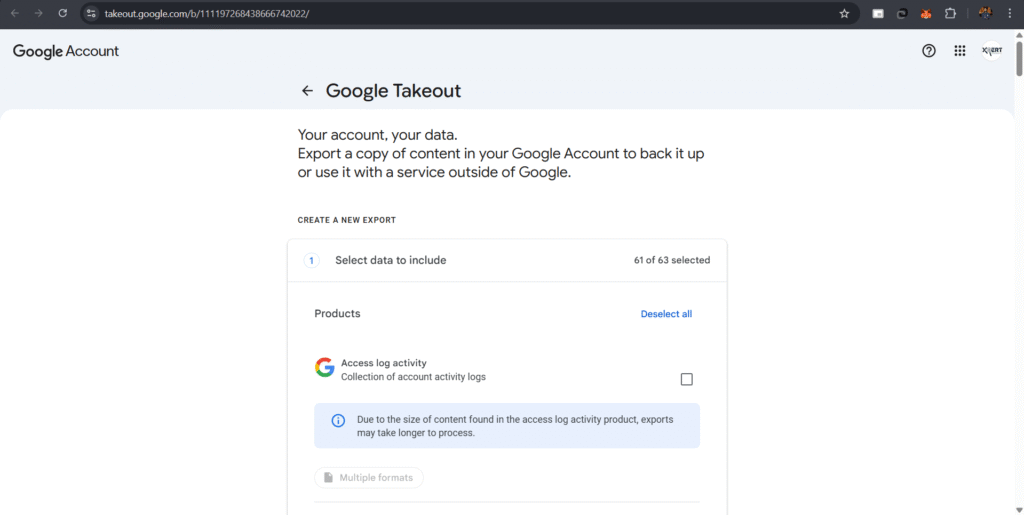
Google Takeout — Full forensic walkthrough
Below is a detailed, step-by-step procedure for extracting Gmail using Google Takeout, including every option you’ll encounter, how to choose settings for a forensic collection, verification, and best practices for packaging and chain of custody.
Overview of Takeout options you’ll see
When creating an export, Takeout shows options that affect what you receive and how:
- Services selection: Choose which Google services to include. For mailbox export, select Mail (Gmail). You may also optionally include Drive if attachments were stored there. (these are some important products)
- Access log activity
- Blogger
- Chrome
- Contacts
- Drive
- Google Account
- Google Photos
- Keep
- Maps
- Messages
- Mail format: Gmail exports as MBOX (the standard format for mailbox archives).
- Include/exclude labels: Takeout typically exports all mail by default, but you can select to include only specific labels/folders. Use this to limit scope where the legal order specifies date ranges/labels.
- Delivery method: Options typically include:
- Send download link via email (one-time link).
- Add it to Google Drive.
- Add to Dropbox.
- Add to OneDrive.
- Add to Box.
- Archive file type / compression: Usually .zip or .tgz choices — choose based on file size and downstream tooling.
- Archive size (split size): Options such as 1 GB, 2 GB, 4 GB, 10 GB, 50 GB (exact options in UI may vary). Larger exports will be split into multiple archive files of chosen maximum size.
- Export frequency: One-time export or repeat exports (e.g., every 2 months for one year) – pick one-time for a single forensic snapshot unless continuous collection is required and legally authorized.
Note: For forensic work: prefer one-time exports, MBOX format, .zip if you will be working on Windows, and choose a split size appropriate for download stability (e.g., 2–10 GB). If you need to preserve large mailboxes intact, choose a large split size so fewer parts are created.
Interpreting Takeout contents (what you’ll typically receive)
When you extract Mail via Takeout, expect:
- One or more MBOX files containing raw email messages in MIME format. These contain the full email body and attachments encoded inline.
- A manifest or metadata file in JSON format (sometimes) that lists the export specifics (time, services included). Save a copy of this manifest with your case file.
- Filename conventions: archive parts will follow Takeout’s naming pattern and the MBOX files often are named by label or All mail including Spam and Trash depending on selection. Keep filenames unchanged and record them exactly.
Handling large exports, split archives and resumability
- If the export is split into multiple parts, download all parts and verify each part’s hash. Keep all parts together — many tools require the complete set to reconstruct the export.
- If a download or transfer fails, do not attempt partial repairs on original files. Re-initiate a fresh download from the cloud location or request a new export, and document why the original was re-acquired.
- For extremely large mailboxes, consider having Google add the export to Google Drive then transfer the file to your secured collection environment via a secured link rather than repeatedly downloading over unstable networks.
Conversion & viewing (for court presentation or analysis)
- MBOX viewers (read-only) or specialized forensic tools can parse MBOX without modifying it. When exporting items to presentable formats (EML, PDF, or printed copies), always create the presentation copies from working copies, not the preserved originals.
- If converting MBOX to per-email files (EML), do so on a working copy and compute hashes of the working conversion outputs; keep the original MBOX untouched.
- Document conversion tools and exact commands/options used.
Common limitations and pitfalls
- Export is only as current as the time it was generated. Do not assume it contains future activity. Record the exact export timestamp.
- Two-factor authentication (2FA) will block unauthorized sign-ins. If 2FA is enabled, coordinate with the account owner or use legal/admin channels. Document any admin involvement.
- Transient links: Takeout download links typically expire; download immediately and record the download time.
- Attachments stored externally (e.g., Drive links in email) may not always embed file content; if attachments are stored as Drive links, include Drive in the export or separately collect Drive content.
- Label vs. folder semantics: Gmail uses labels not folders — labels may manifest in MBOX headers; do not expect one-to-one folder mapping like other mail systems.
- Partial exports: If you selected only certain labels or date ranges, ensure this matches the legal scope. Erroneous scope selection can render evidence inadmissible or incomplete.
Conclusion
Google Takeout, when used correctly and documented fully, provides a strong, repeatable, and defensible method to extract Gmail data for legal and forensic purposes. Careful choice of Takeout options, strict adherence to chain-of-custody procedures, immediate hashing, and conservative handling of the raw MBOX archive together ensure the evidence’ integrity and admissibility.
How Xpert Forensics Can Help
At Xpert Forensics, we specialize in uncovering hidden digital trails, whether it’s corporate fraud, insider threats, or data breach investigations. Our certified forensic investigators use industry-leading tools and methodologies to ensure that every byte of evidence is discovered, validated, and reported.
Need expert digital forensic support or training?
📩 Feel free to connect with us today. | Email: service@xpertforensics.in